Mediator Help Center

Mediator Help Center

Everything you need to run mediations on Scale

From joining through C.A.R. to onboarding, rates, Zoom and Stripe, and running your cases. Every step explained, with real screenshots.

Onboarding & account setup

Onboarding a new mediator

After you join the panel from C.A.R., you set up your Scale account. It is a quick five-step wizard, and here is every screen with what each field means. The steps are the same for everyone; if your profile was pre-loaded, you review the pre-filled details instead of typing them in.

1

Create your account

Create your login: the email and password you will use to sign in from now on.

Sign up
Step 1: Create your account
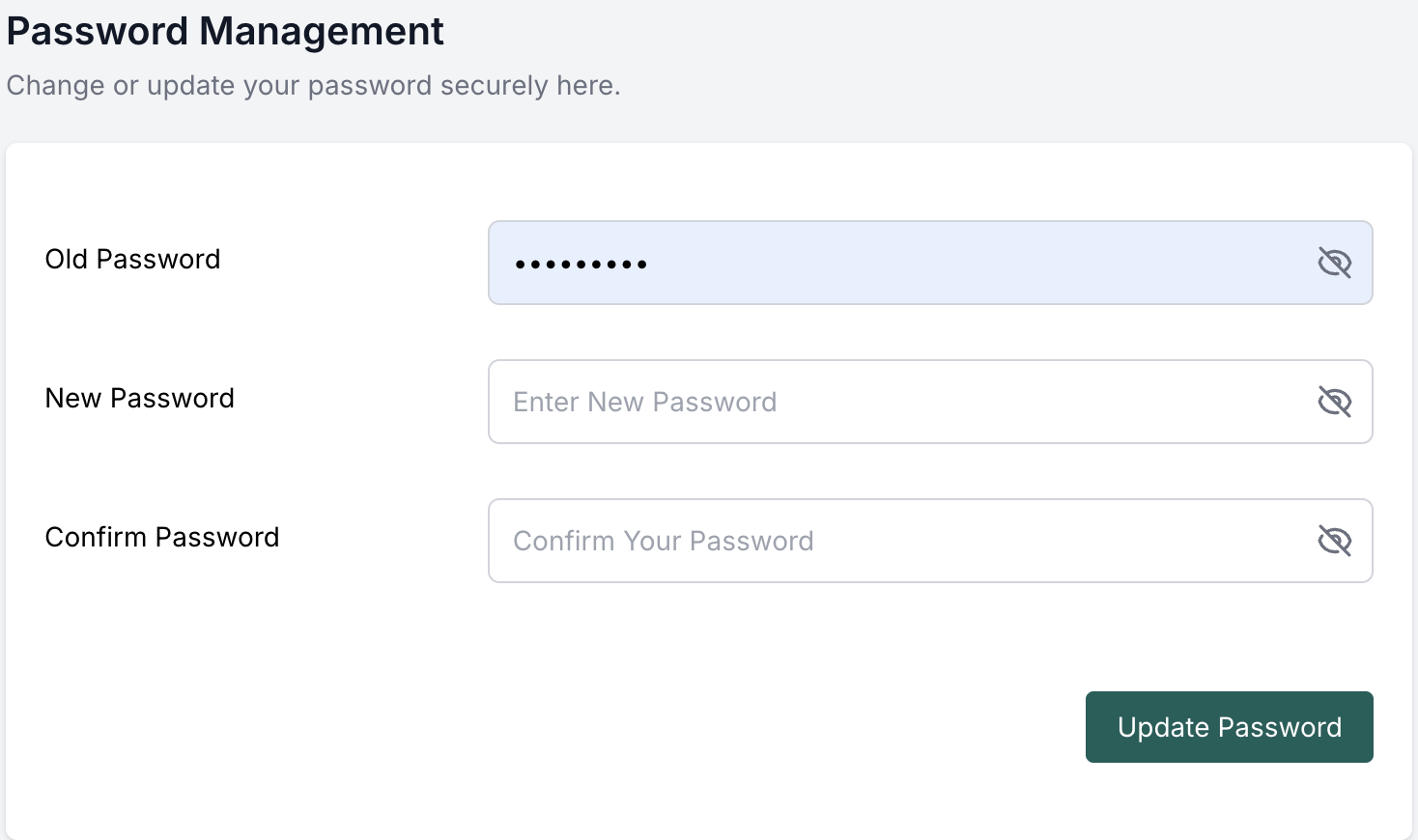
Email Address *
The email you log in with and where all case and payment notifications go. Use the professional address you want parties to see.
Password *
Choose a secure password (8+ characters). You use it every time you sign in.
Confirm Password *
Re-type the same password to confirm.
2

Basic information

Tell us who you are. This is how you appear to parties on cases, emails, and invoices.

Basic Information
Step 2: Basic Information
Profile Picture
A professional headshot (image, max 2 MB) shown on your mediator profile.
First / Last Name *
Your name as shown to parties on cases, reminder emails, and invoices.
Email *
Carried over from sign-up; the address all case and payment notifications go to.
Phone *
Your contact number (with country code), used for account and admin contact.
3

Your profile & rate

Your professional details and what you charge. See Setting your rates for the rate rules.

C.A.R. Profile Information
Step 3: C.A.R. Profile Information
C.A.R. Hourly Rate
Your hourly rate for C.A.R. matters, which drives what parties are billed on your cases.
W9 Form Attachment
Upload your signed W-9 (PDF, max 2 MB), required before you can be paid out.
Bio
A short professional bio (rich-text editor) shown on your profile.
Service Area
The regions and areas you cover.
Affiliation · Languages
Type each one and press Enter to add it as a tag: professional memberships and languages you speak.
Education
Add school, start date, and degree. Use "Add More" for multiple entries.
4

Background

Your credentials and experience: bar admissions, awards, and areas of practice. These strengthen your profile for the parties choosing a mediator.

Background
Step 4: Background
5

Connect Zoom & Stripe, then finish

The final screen connects the two integrations that make your account fully operational. See Connecting Zoom & Stripe for why they matter.

Stripe and Zoom Configuration
Step 5: Stripe and Zoom Configuration
Zoom → Connect
Lets Scale auto-create a Zoom link for every mediation. Without it, no video links are generated automatically.
Stripe → Connect
Sets up payouts so you can invoice parties and get paid. Without it, you cannot send invoices or receive payment.
Create account
Finalizes your profile. You then receive an admin confirmation email, and once approved your account goes live.
Getting started

Getting started: from C.A.R. to Scale

What changes when you move from the C.A.R. portal to the Scale platform, and what to do first.

You have joined the panel through C.A.R. The Scale platform is where you actually run your mediations. Your profile, calendar, cases, Zoom links, invoicing, and payouts all live here.

Your first three things

  • Onboard on Scale, set up your account (full guide).
  • Set your rates so cases bill correctly (rate rules).
  • Connect Zoom and Stripe so meetings and payments work automatically (how and why).

After that, when a case is assigned you manage it from your portal. See When a case is assigned.

Good to knowYou can reach this help center any time, before or after you have a Scale account, from a direct link or from the Knowledge Base button inside the portal.
Onboarding & account setup

Setting your rates

How pricing works on Scale and what each rate controls.

Account → Pricing
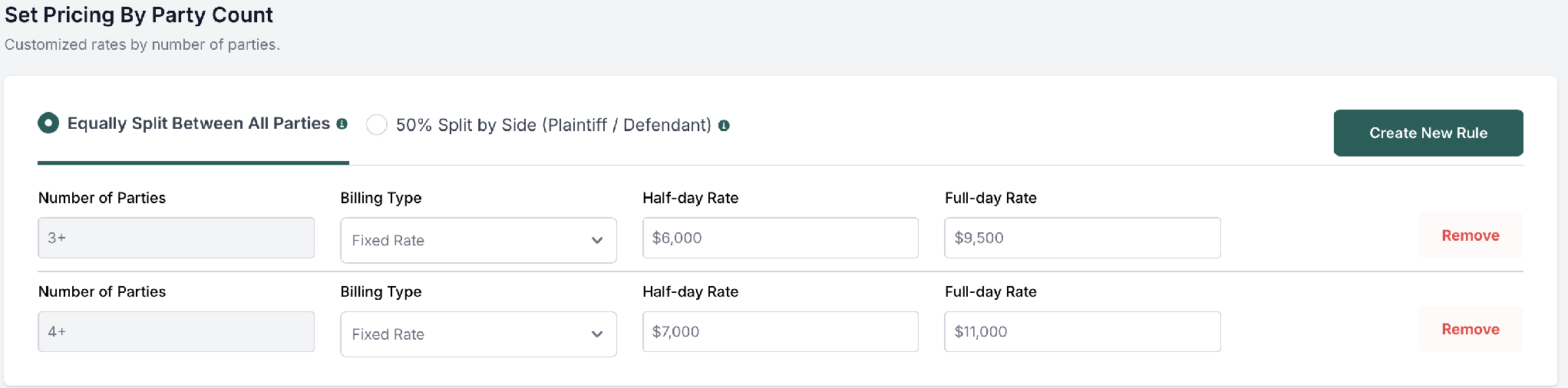
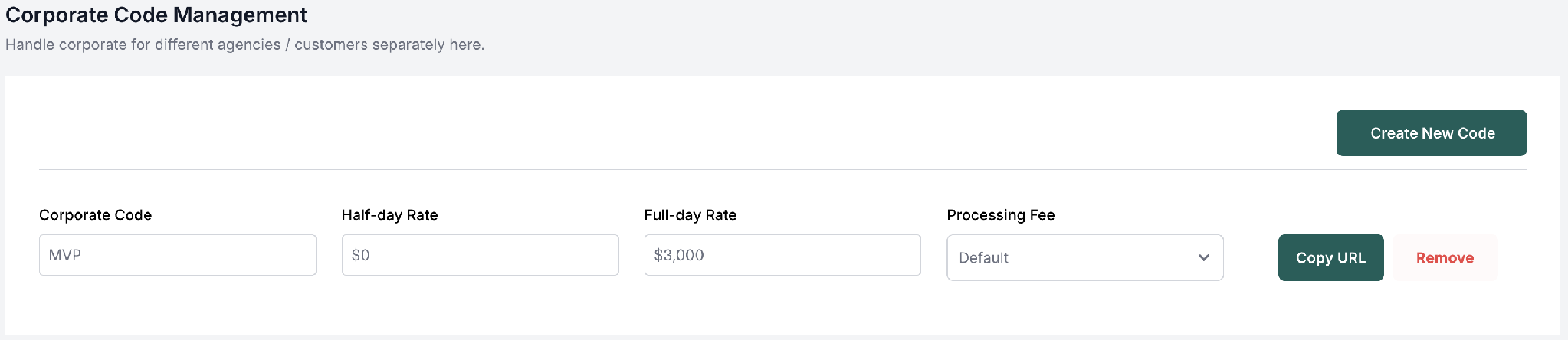
Account → Pricing: your rates, per-party pricing rules, and corporate codes.

Pricing types

  • Fixed: you set a half-day and full-day rate. Per-party pricing scales with the number of parties (a 2-party base, higher for 3 and 4 parties).
  • Hourly: you bill by time, common for ongoing or complex matters.

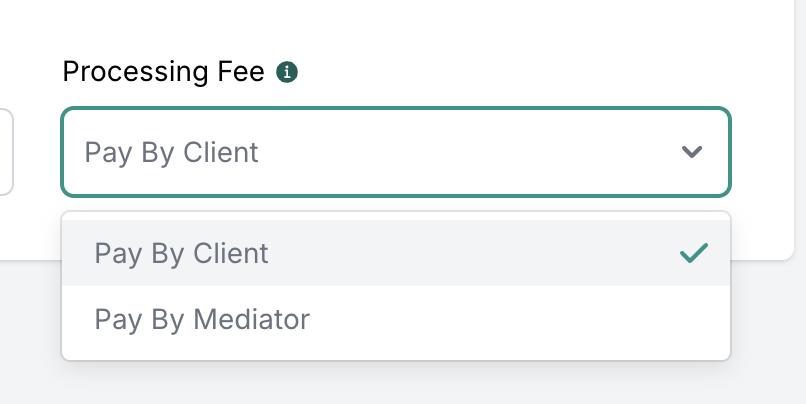
C.A.R. rate & admin fee

  • Your C.A.R. rate applies to C.A.R. matters and is what parties are billed on those cases.
  • Scale's admin fee (per party) is added on top, so your rate is always yours in full.
Where to find thisRates live under Account → Pricing in your portal and can be changed any time before a case is invoiced.
Onboarding & account setup

Connecting Zoom & Stripe

The two integrations that make your account fully operational, what each one unlocks, and what is limited until they are connected.

Zoom

Connecting Zoom lets Scale auto-create a meeting link for every mediation and include it in reminder emails to all parties. Without it, no automatic video links are created and links must be added manually for each case.

Stripe

Connecting Stripe sets up your payout account so you can invoice parties and receive payment directly. Without it, you cannot create or send invoices and cannot be paid; the Billing section stays limited until it is connected.

Zoom and Stripe connect
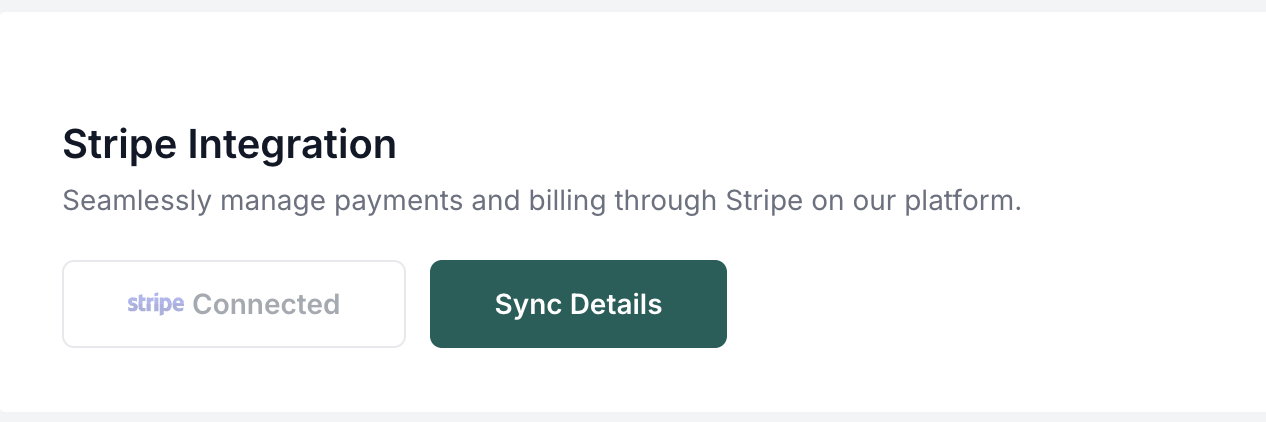
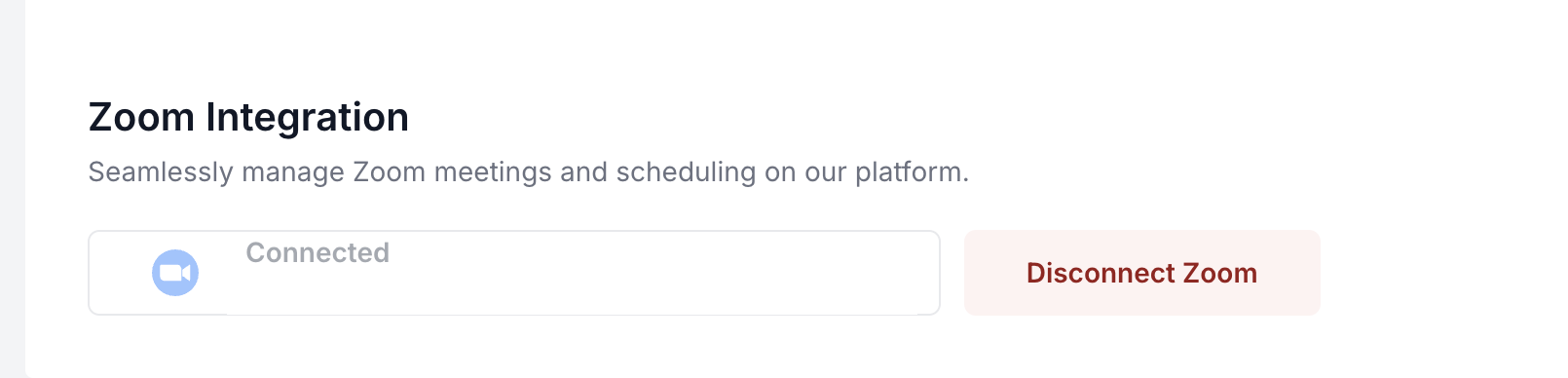
One click each connects Zoom and Stripe. The same controls live under Account → Integrations afterward.

Fully onboarded vs. not fully onboarded

Your account is "fully onboarded" once both Zoom and Stripe are connected. That single difference decides what each new case can do.

Finish onboarding → two possible states
Fully onboarded
Zoom and Stripe connected
  • A Zoom link is created automatically for every mediation
  • Reminder emails go out to all parties with the link
  • You can invoice parties and receive payouts
  • No setup banner; the portal is fully unlocked
Not fully onboarded
Zoom and/or Stripe missing
  • !A reminder banner prompts you to finish connecting
  • !No automatic Zoom link; you add one manually per case
  • !Billing is limited; you cannot invoice or be paid
  • !The case opens, but key actions stay locked

While Zoom or Stripe is missing, the portal looks different: a setup banner sits at the top of every page, the menu is reduced, and case actions stay locked until you finish connecting.

Not fully onboarded portal
How the portal looks when you're not fully onboarded: a yellow setup banner across the top, a reduced menu (only C.A.R. Cases and Profile), and limited sections until you connect the missing integration.
Integrations before connecting
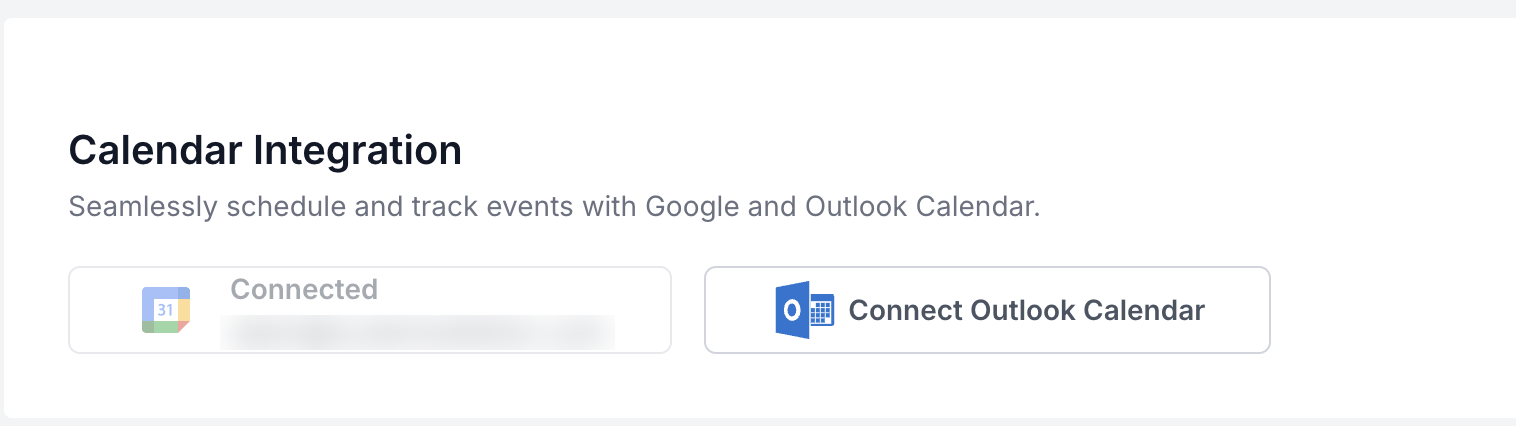
Account → Integrations with one service not connected: a "Connect" button for it, while already-connected services show as connected.
Integrations once connected
Account → Integrations once connected: each service shows as connected.
Why it mattersFinishing these two is the difference between a view-only portal and a fully working one. Connect them before your first mediation so links and invoices are ready.
Onboarding & account setup

Your profile & account

Where your professional details, rates, reminders, and integrations live after onboarding.

Account profile
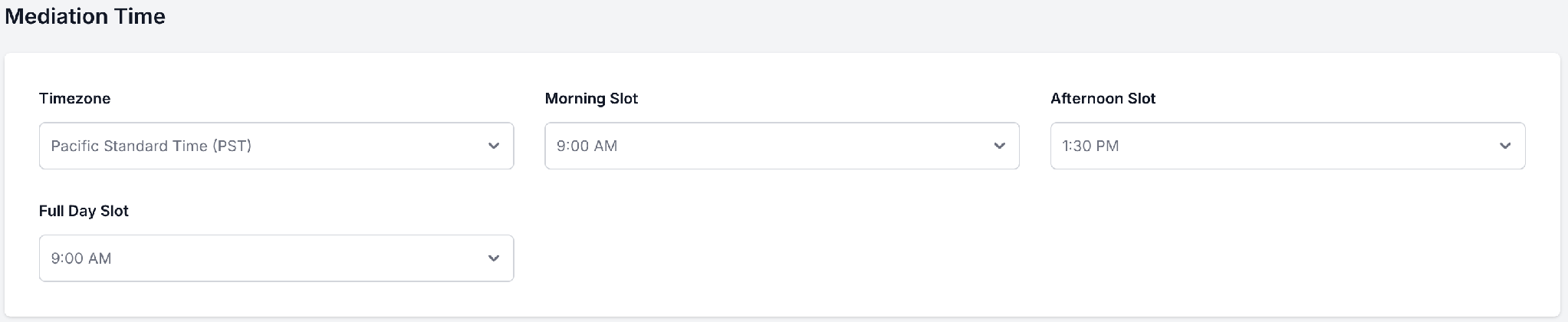
Account → Profile: your bio, photo, and credentials.

The Account area is your settings hub. It holds everything about you and how your account behaves:

  • Profile: your bio, photo, and credentials, the same details parties see.
  • Pricing: your rates and per-party rules (see Setting your rates).
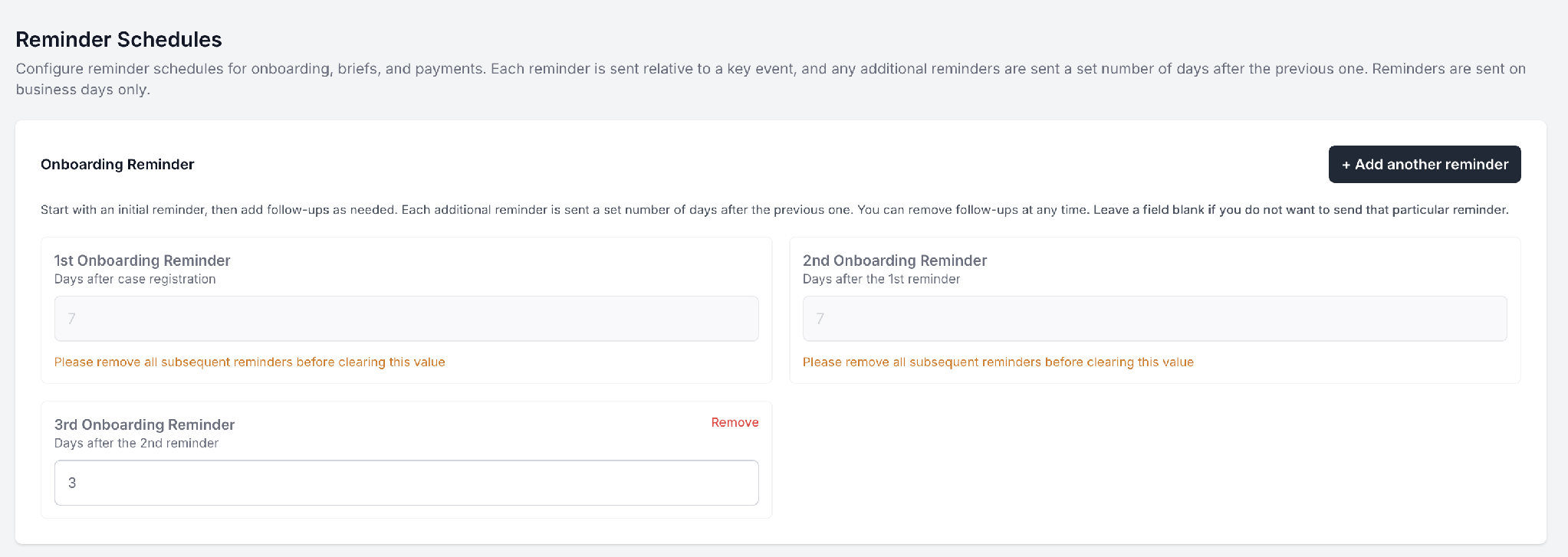
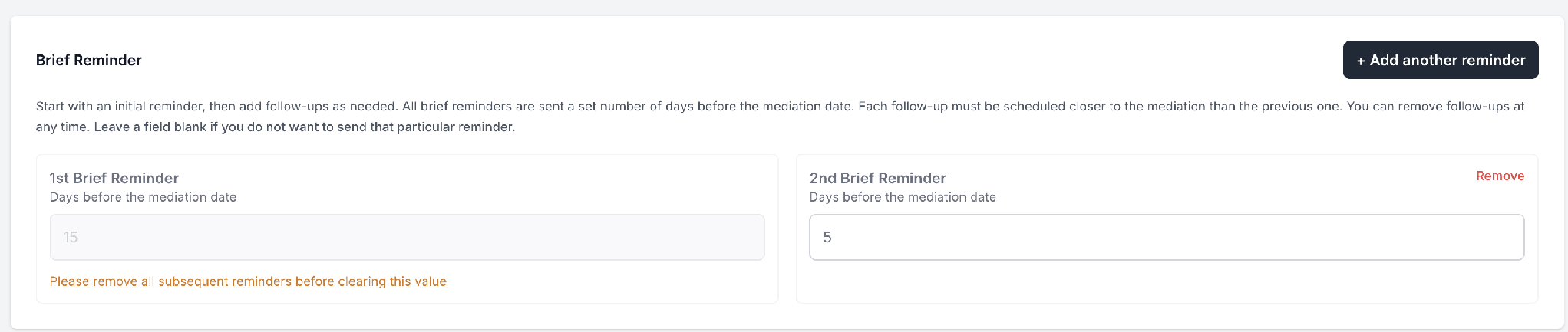
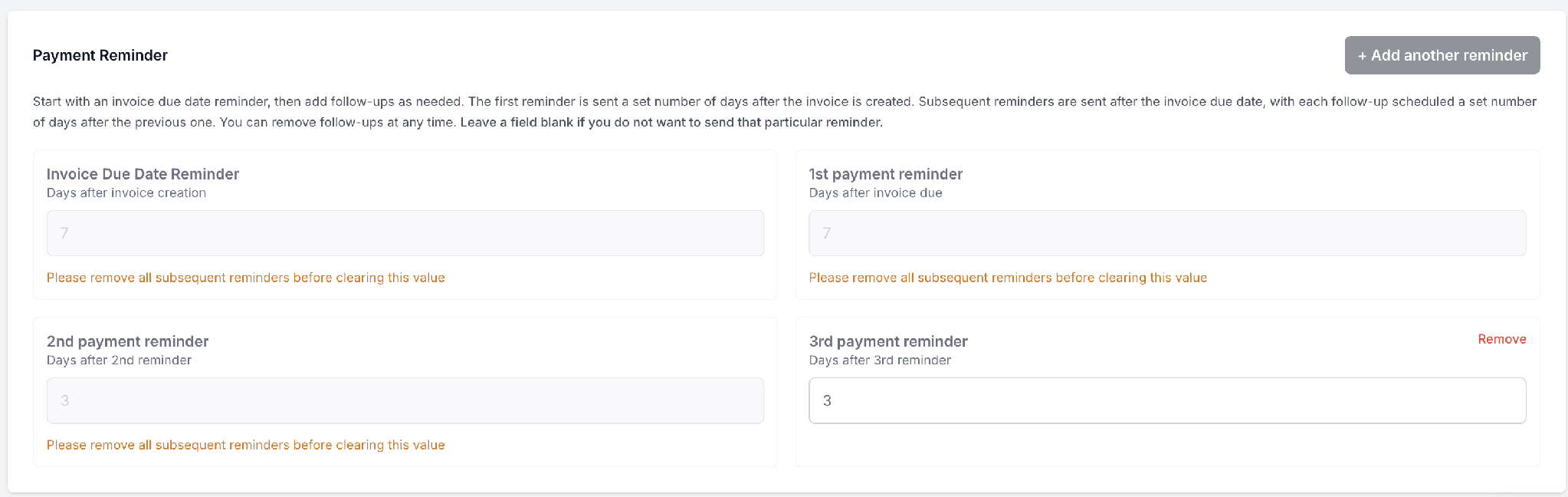
  • Reminders: the automatic emails sent to parties before a session.
  • Integrations: connect or reconnect Zoom and Stripe (see Connecting Zoom & Stripe).
  • Email templates: the wording of the emails parties receive (see Email templates).
Your portal

Your Scale portal: a tour

Once approved, you sign in at your portal. Here is what every section does and what you use it for day to day.

Home (your dashboard)

Your landing page. It shows your upcoming mediations, headline stats, and a per-case status indicator, a quick read on what is outstanding (onboarding, payment, and brief) before each session.

Mediator dashboard
The Home dashboard: headline stats, your next case, upcoming cases, and recent payments.

From Home you can branch into each area of the portal:

  • Schedule: your calendar of mediations (details).
  • Cases & C.A.R. Cases: your matters (details).
  • Billing: invoices and payments (details).
  • Booking link: a shareable scheduling link (details).
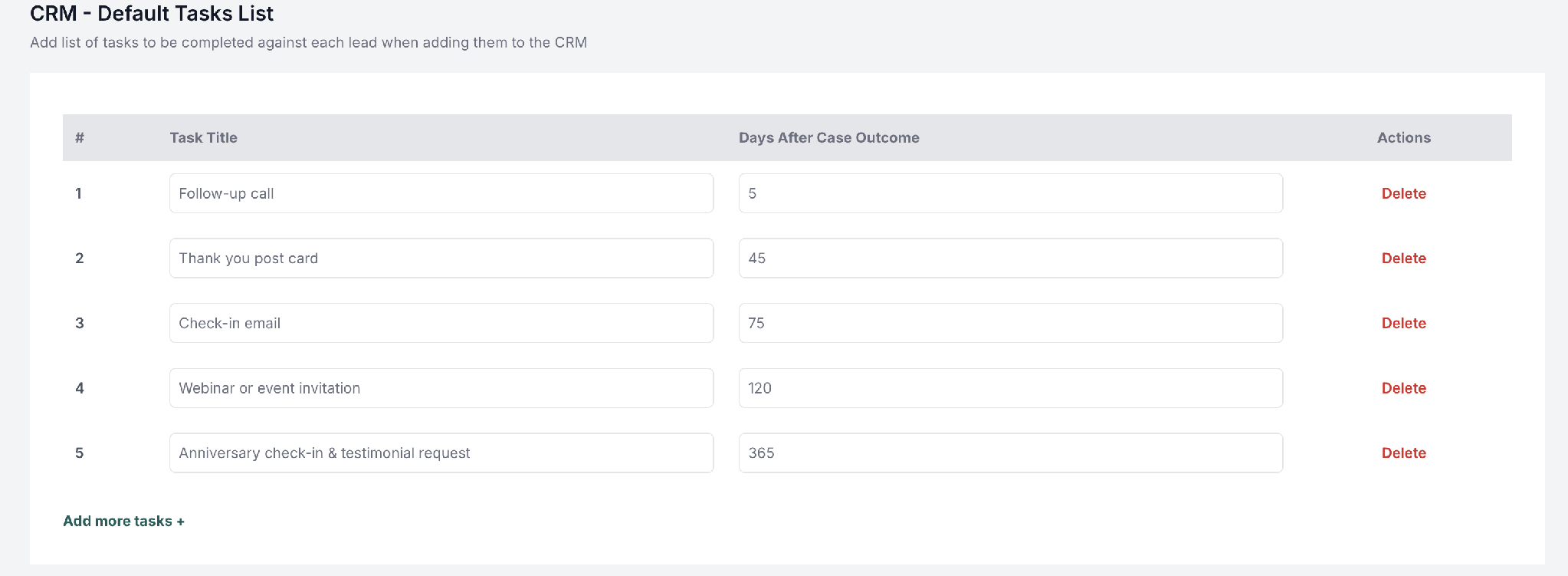
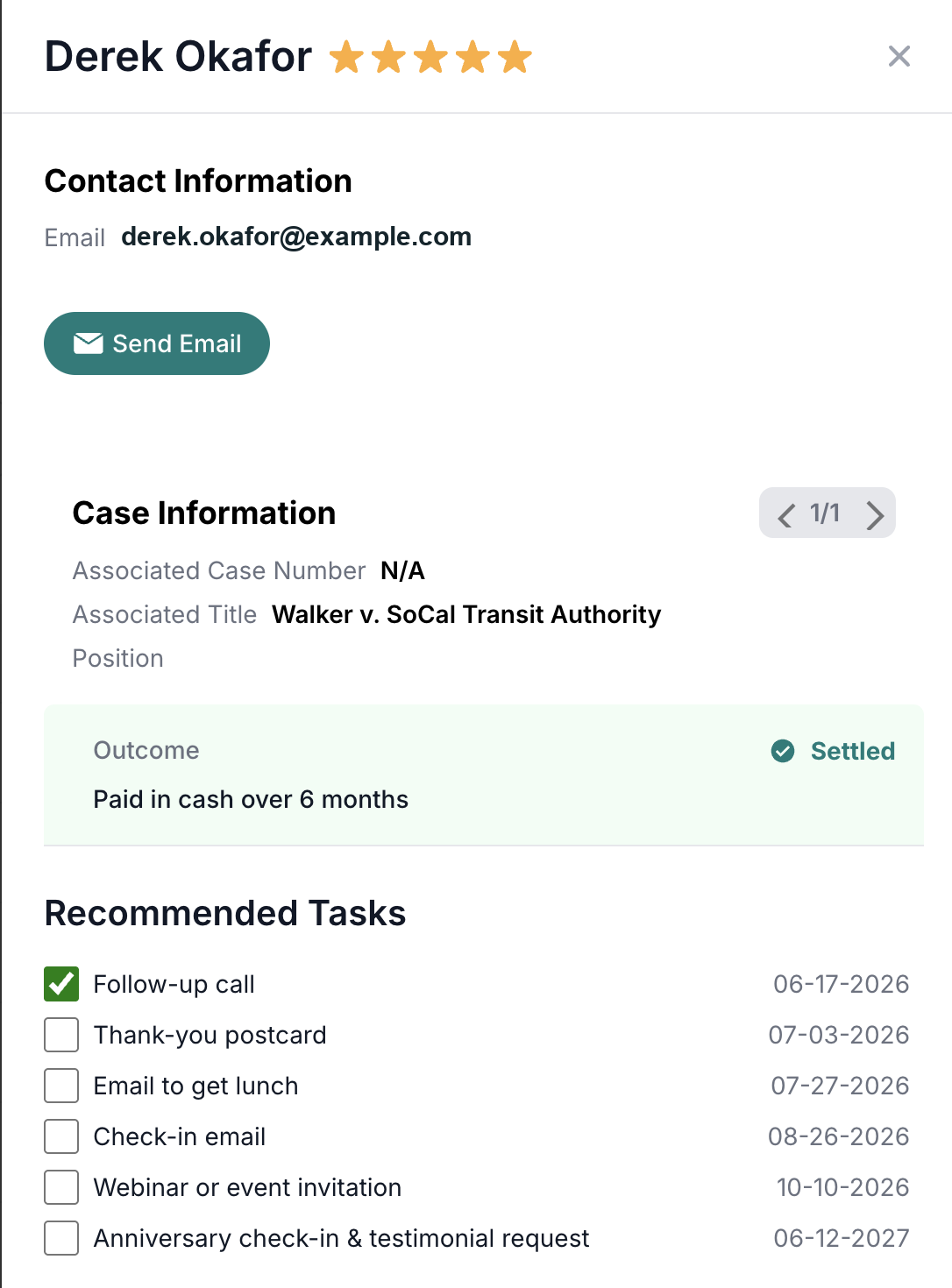
  • CRM: contacts and notes (details).
  • Account: your profile, pricing, reminders, and integrations (details).
TipThe colored status indicators on Home and in your case list are the fastest way to spot a case that needs attention before its mediation date.
Your portal

Schedule

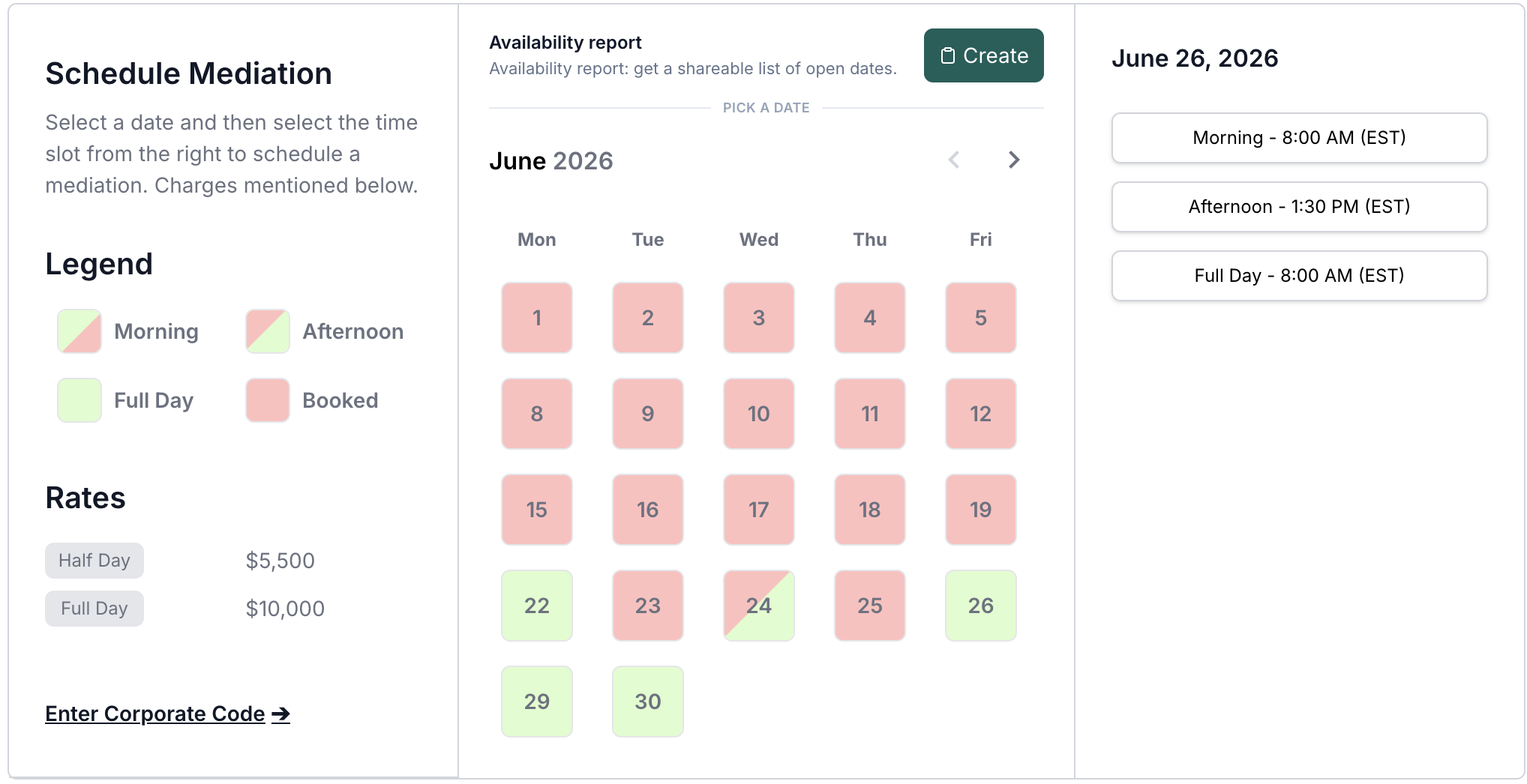
Your calendar of mediations: see availability at a glance and confirm session dates and times.

Schedule
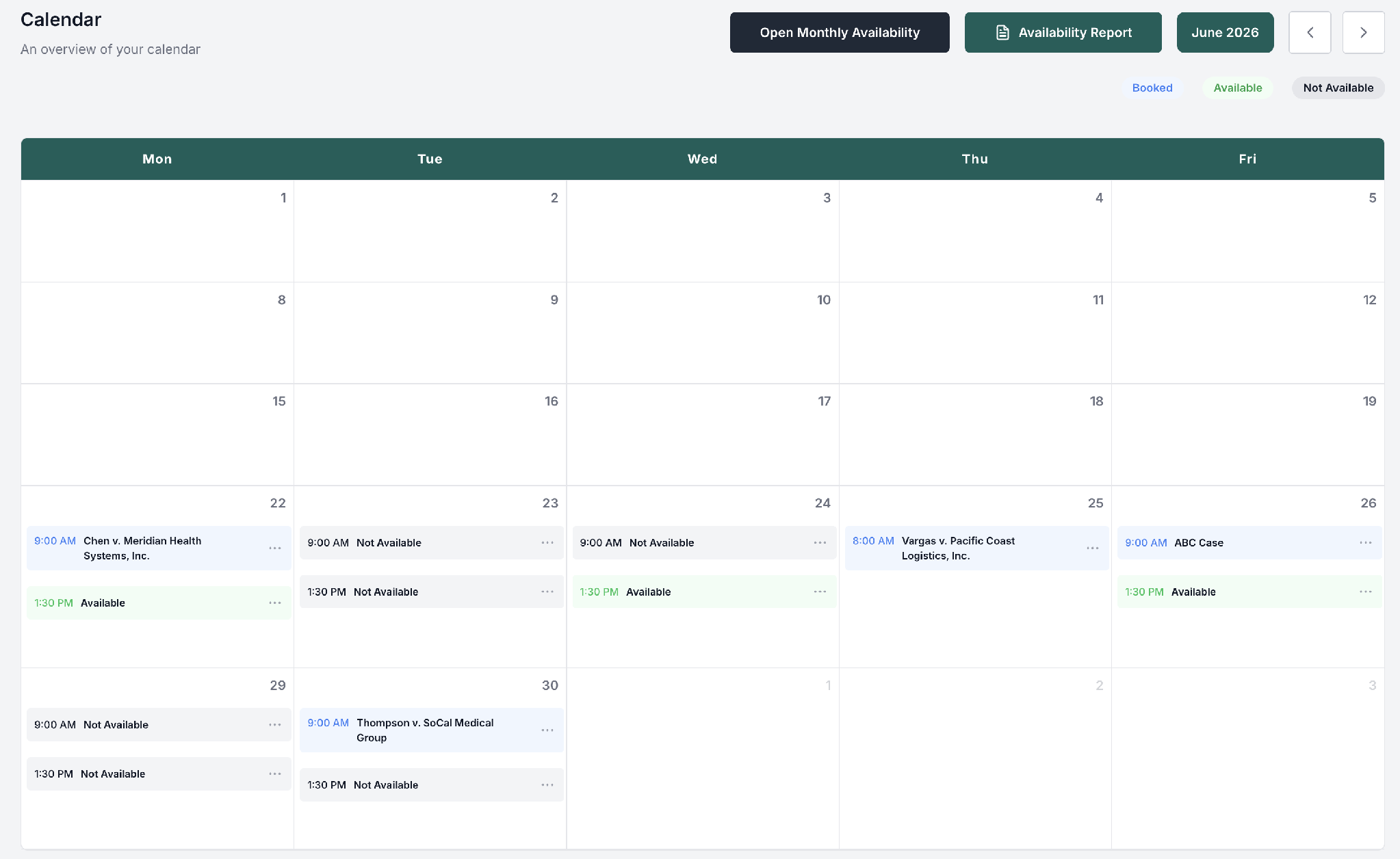
The Schedule calendar, showing your booked and upcoming mediations.

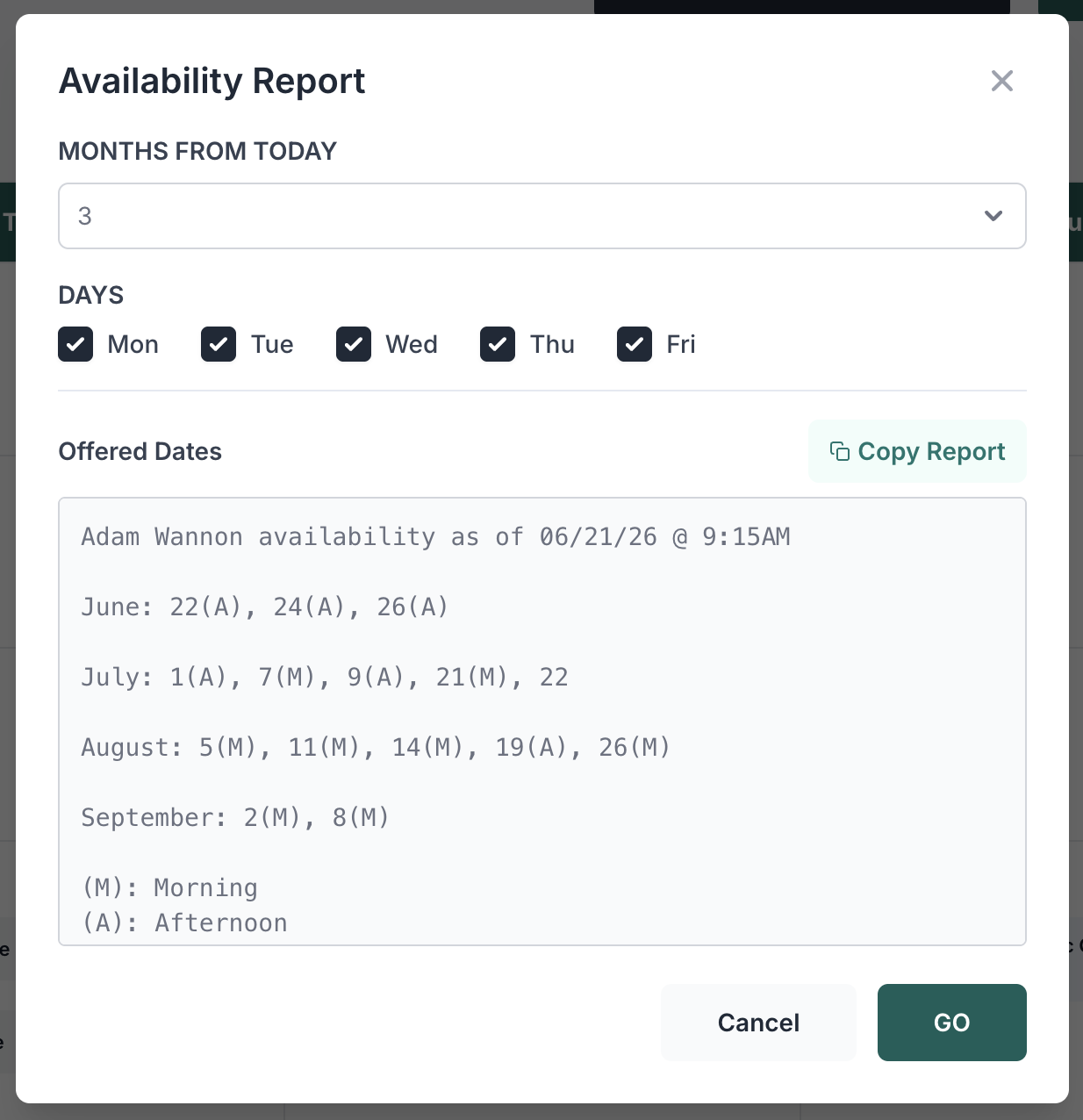
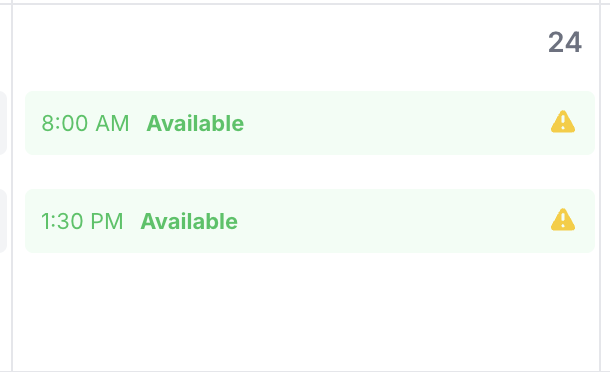
The Schedule shows every mediation on a calendar so you can read your week at a glance. Use it to confirm session dates and times, spot conflicts, and see what is coming up. Parties book against your availability through your booking link, and confirmed sessions appear here automatically.

Your portal

Cases & C.A.R. Cases

Where your matters live: two tabs, one for standard cases and one for C.A.R. cases.

Cases list
The Cases list, with each matter and its current status.

Your matters are split across two tabs: Cases for standard matters and C.A.R. Cases for matters that came in through C.A.R. Each row shows the parties and the case status so you can see at a glance what needs attention.

C.A.R. Cases list
The C.A.R. Cases tab, listing matters received through C.A.R.

Open any case to see everything in one place. That detail view is covered in When a case is assigned.

Your portal

When a case is assigned to you

What happens when admin assigns you a case, and how to take it from assignment to closed.

When admin assigns you a case, it appears under Cases (or C.A.R. Cases) and you are notified. Open the case to see everything in one place: the parties and their counsel, the mediation date, uploaded documents, the Zoom link, and the case's status indicators.

Case detail view
A case detail view: parties, status indicators, onboarding links, Zoom controls, and the Case Progress Tracker.

Reading the status indicators

Each case shows three at-a-glance signals, per party, so you always know what is outstanding:

  • Onboarding: whether the party has completed their intake.
  • Payment: whether the invoice has been sent and paid.
  • Brief: whether that side has submitted its brief.
Status indicators
The Onboarding, Payment, and Brief indicators for each party.

The Case Progress Tracker

The right rail keeps a running record of every action on the case, per party, so nothing slips: what is completed, what is pending, and which reminders have gone out.

Case Progress Tracker
The Case Progress Tracker, showing completed and pending steps for each party.

Choosing the mediation date

Confirm the mediation date and time with the parties, then set it on the case. Confirmed sessions flow into your Schedule, and party reminders are timed off this date.

Working the case, in order

  • Review the parties and their counsel for accuracy.
  • Confirm the Zoom link for the session, auto-created if Zoom is connected, added manually if not.
  • Collect briefs from each side ahead of the date (reminders go out automatically).
  • Confirm the schedule and that party reminders are set.
  • Invoice the parties from Billing (see Billing & invoices).
  • Hold the mediation on the scheduled date via the Zoom link.
  • File the outcome report afterward to close out the case.

What you can do on a new case depends on whether your account is fully set up. See Connecting Zoom & Stripe for the fully-onboarded vs. not-fully-onboarded difference.

Your portal

Billing & invoices

Create and send invoices, track what is paid, and manage payments across your cases.

Billing
The Billing section: every invoice and payment across your cases.

The Billing section lists every invoice and payment across your cases. From here you create and send invoices, track what is paid versus outstanding, and view payment history. On C.A.R. matters, your C.A.R. rate plus Scale's per-party admin fee determine the amount billed.

Viewing an invoice

You generate and send invoices from Billing, and payments are handled by Stripe. Open an invoice to see its detail: the amount, status, parties, and payment method. The invoice itself is hosted by Stripe, so the detail view opens in a secure Stripe page.

Invoice detail
An invoice detail: amount, status, and payment, hosted securely by Stripe.
Requires StripeInvoicing and payouts need a connected Stripe account. If Billing looks limited, finish connecting Stripe under Account → Integrations.
Your portal

Booking link

Your shareable scheduling link, so parties can book a slot against your availability.

Booking link
The Booking link page, where you copy and share your scheduling link.

Your Booking link is a shareable URL you can send to parties so they book a mediation slot directly against your availability. Bookings made through it appear in your Schedule automatically, so you do not have to coordinate times by email.

Your portal

CRM & contacts

A lightweight contact manager for the people tied to your cases and clients.

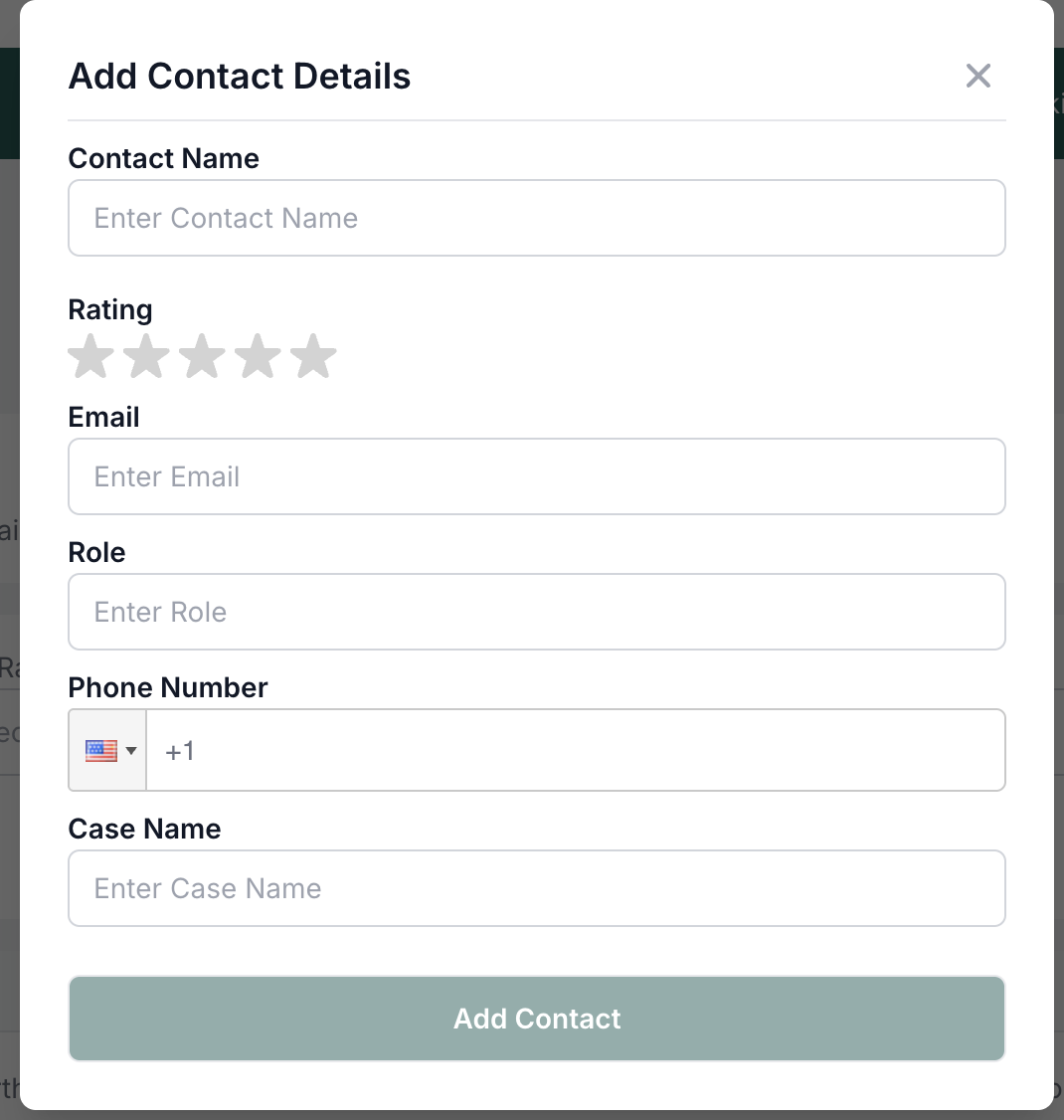
CRM contacts
CRM: your contacts, with the details and notes tied to each.

The CRM is a lightweight contact manager. It keeps your contacts, the notes tied to them, and their relationship to your cases in one place, so the people side of a matter is easy to track alongside the case itself.

Your portal

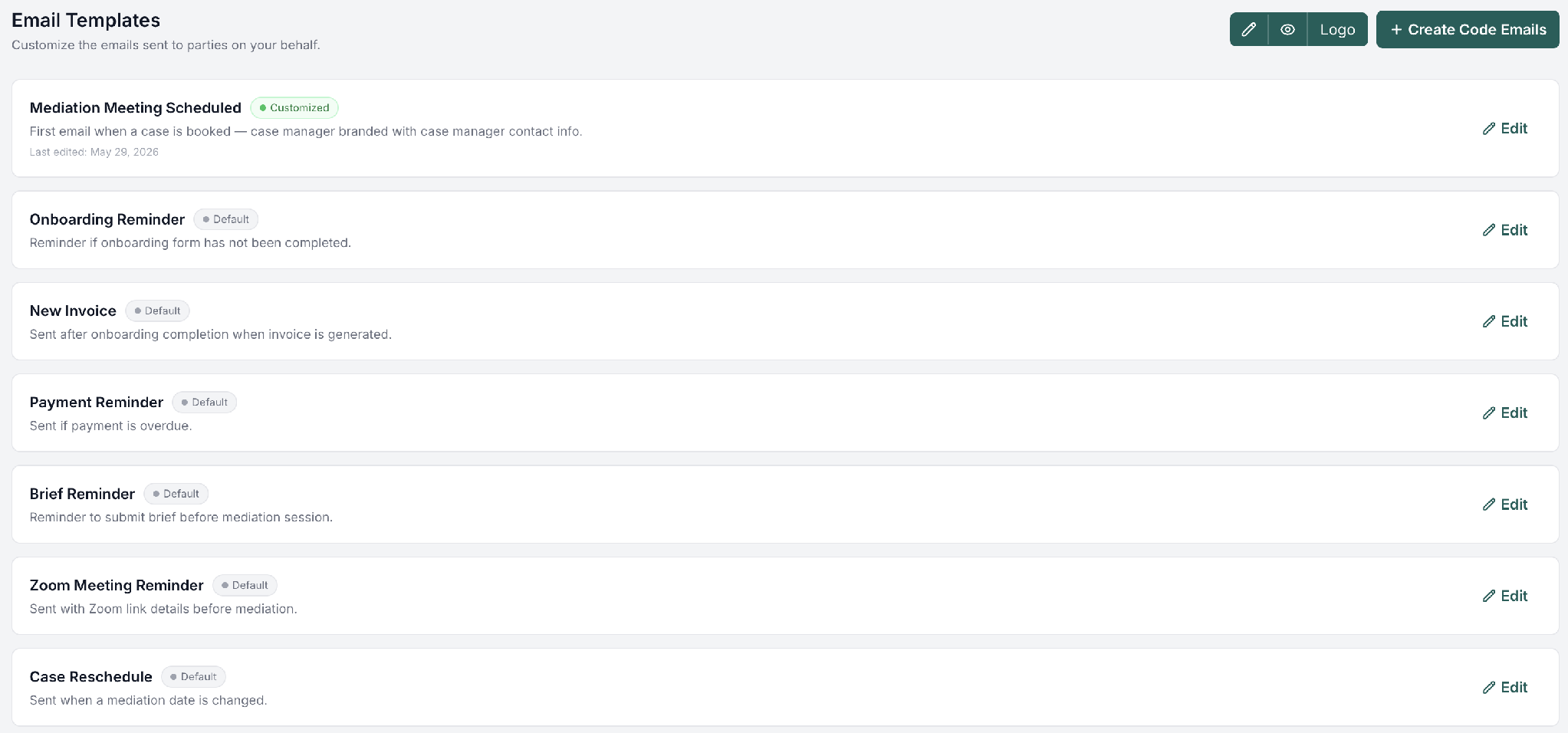
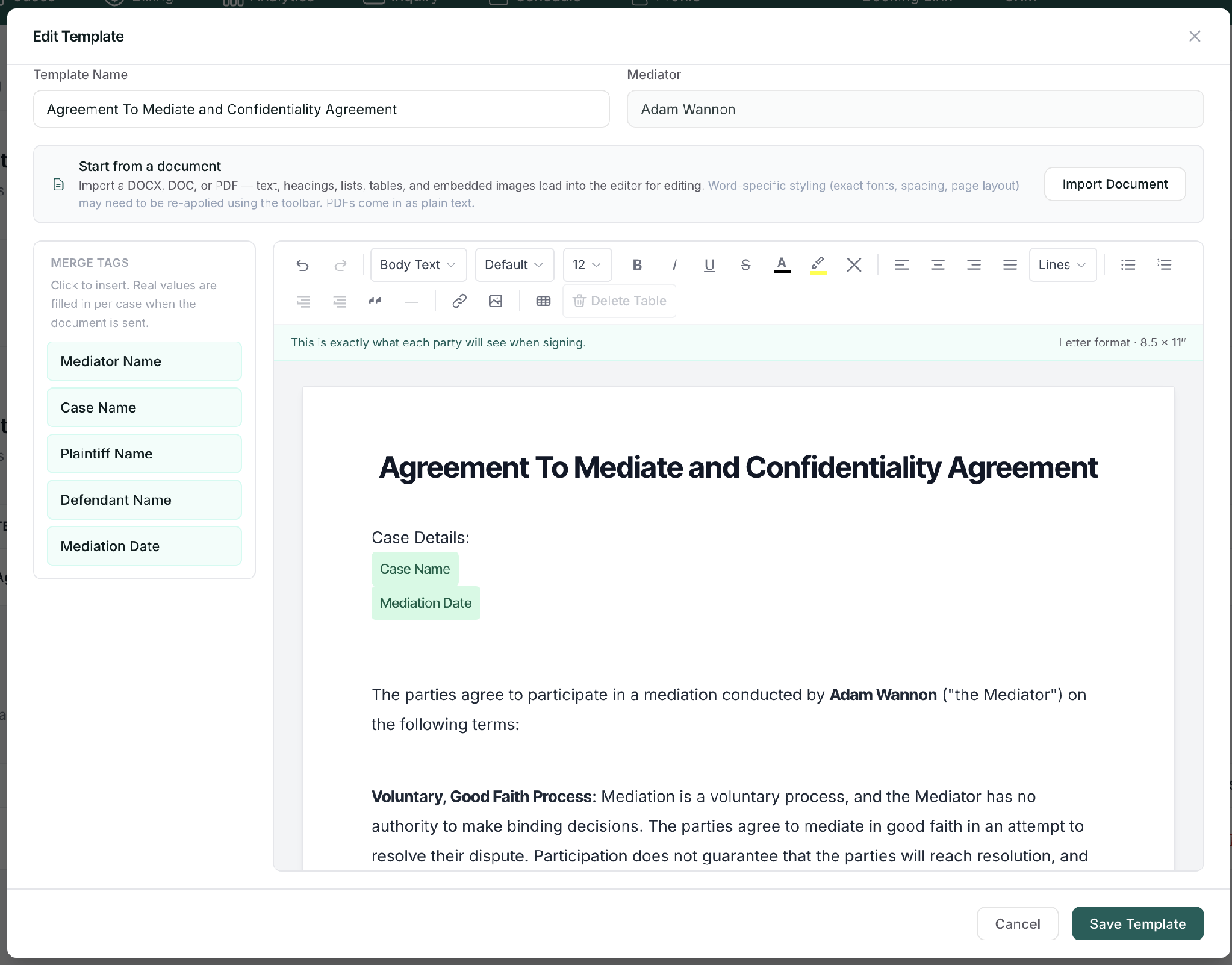
Email templates

The wording of the emails your parties receive, in your control.

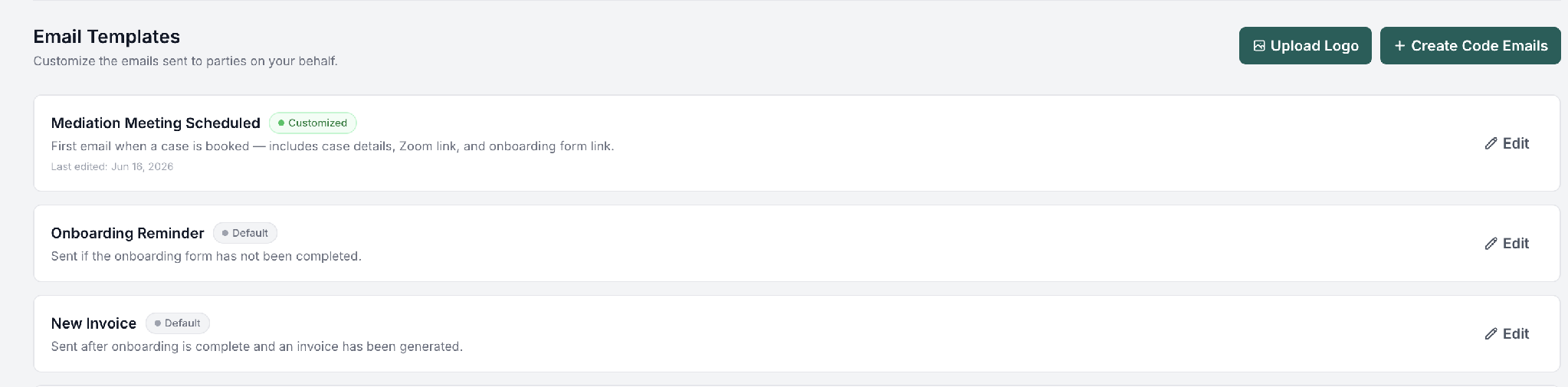
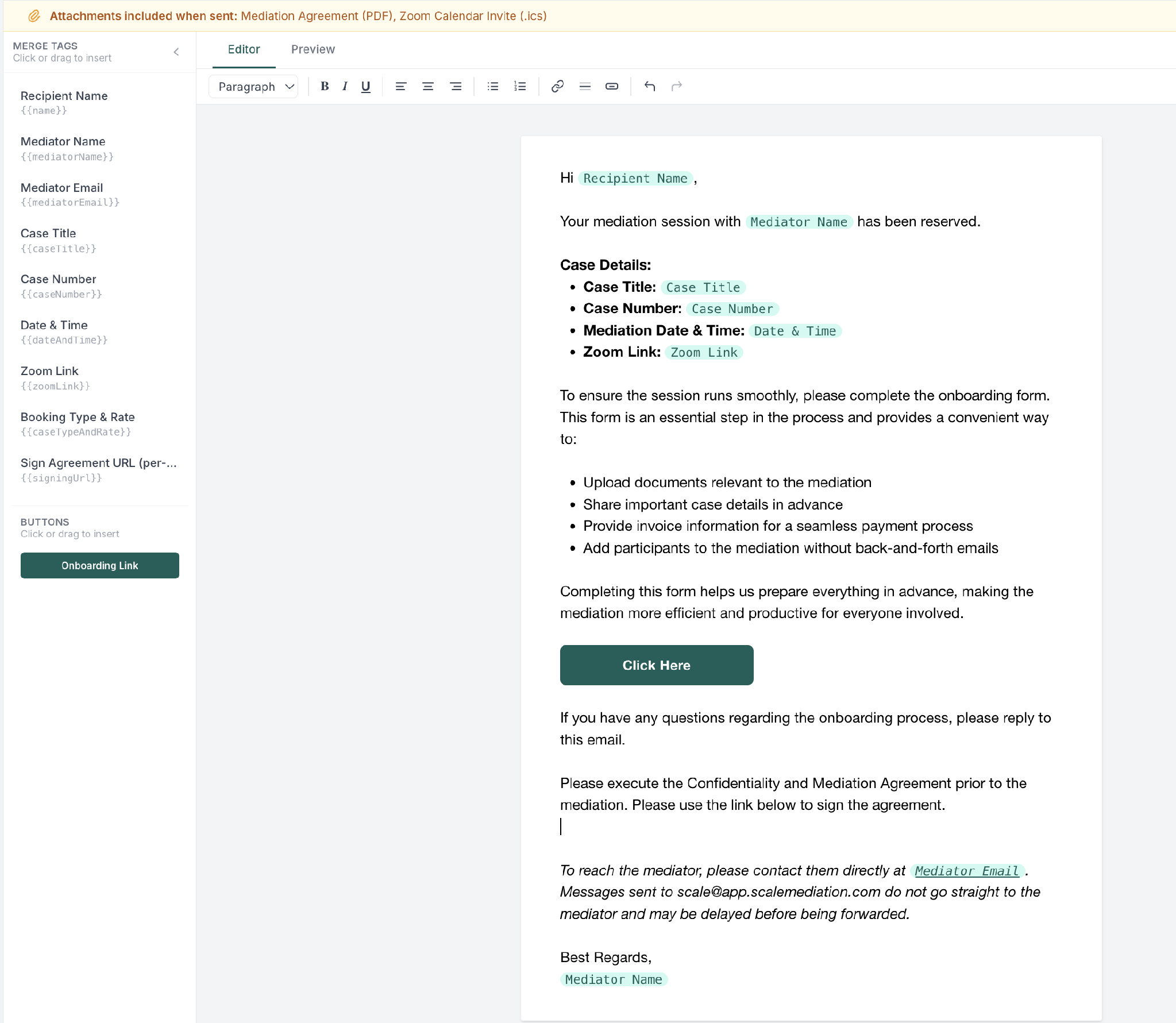
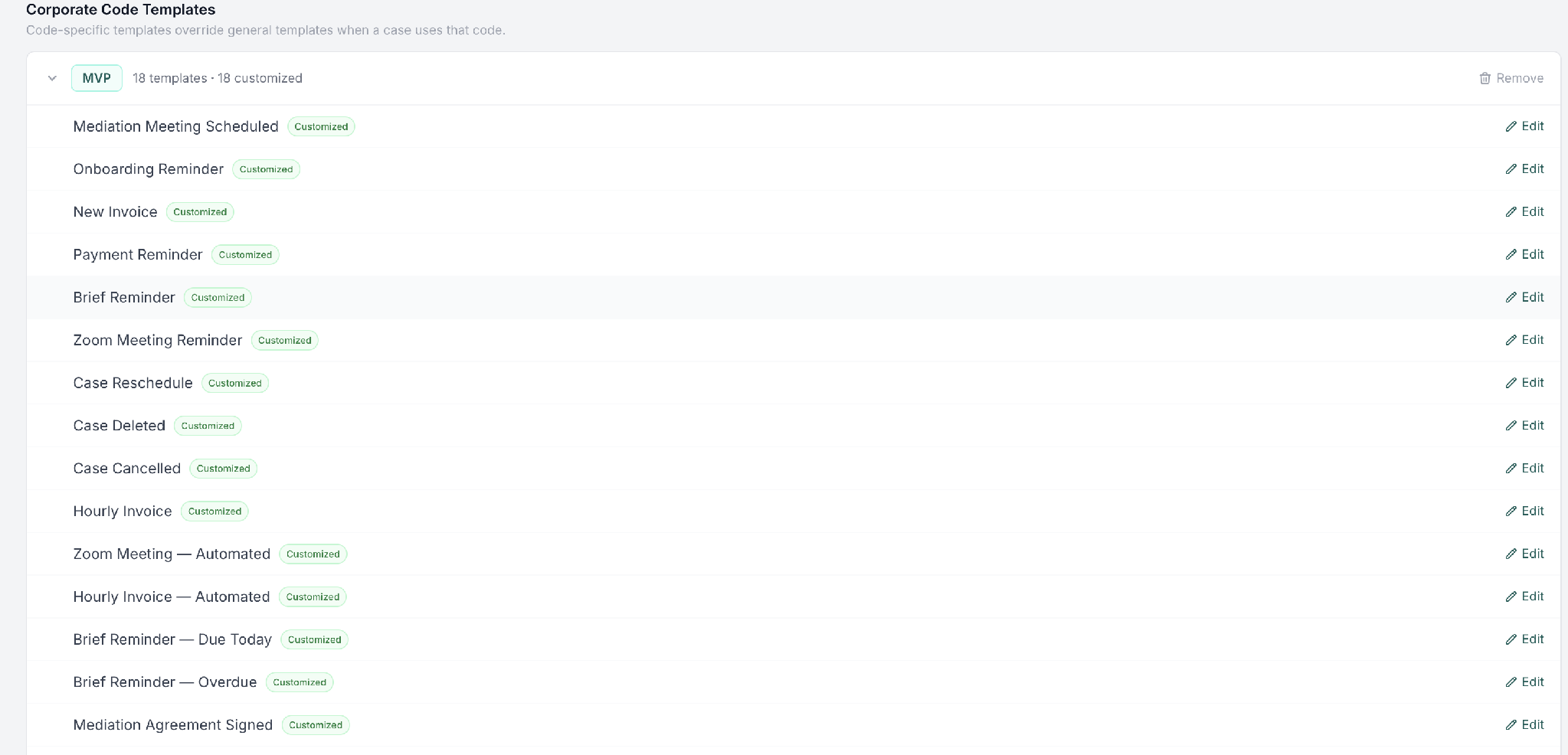
Email templates
Account → Email Templates: edit the emails sent to parties.

Scale sends parties a series of emails across a case: onboarding invites, reminders, and payment requests. Email templates let you control that wording so the messages match your voice. Edit a template under Account → Email Templates, and your changes apply to the emails sent on your cases.

Help

FAQ

Quick answers to the things mediators ask most.

Do I use a different process than C.A.R. to onboard?
No, everyone onboards the same way. If your profile was pre-loaded you review pre-filled data; otherwise you fill it in. Same steps either way.
My Zoom link is not being created automatically. Why?
Your Zoom integration is likely disconnected. Go to Account → Integrations and reconnect Zoom; new mediations will then get links automatically.
I cannot send an invoice.
Invoicing requires a connected Stripe account. Connect it under Account → Integrations, then you can invoice and receive payment.
Can I change my rate after onboarding?
Yes, under Account → Pricing, any time before a case is invoiced.
I finished onboarding. What happens next?
You receive an admin confirmation email. Once approved, your account is live and cases can be assigned to you.

Scale Mediation · Mediator Help Center

AI
Ayla
Scale Mediation help assistant
Hi, I'm Ayla. I can answer questions about the Scale Mediation help center: onboarding, rates, Zoom and Stripe, cases, billing, and more. What would you like to know?